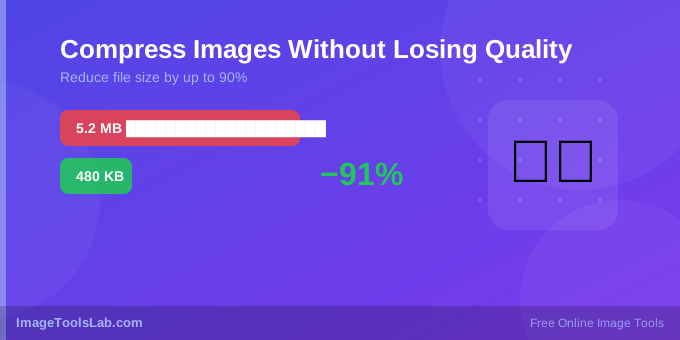
If your website is loading slowly, oversized images are usually the number one reason. Studies show that images account for over 60% of a typical webpage's total size. Compressing your images can cut page load time in half — and the good news is you can do it without any noticeable quality loss.
What Does Image Compression Actually Do?
Image compression reduces file size by removing data that your eyes either cannot detect or barely notice. There are two types:
- Lossy compression — permanently removes some image data. Used by JPEG and WebP. Gives the smallest files.
- Lossless compression — reduces file size without removing any data. Used by PNG. Output is identical to the original.
For most photos and web images, lossy compression at 75–85% quality is completely indistinguishable from the original to the human eye.
The Right Quality Setting for Every Use Case
| Use Case | Recommended Quality | Expected Size Reduction |
|---|---|---|
| Website hero images | 75–80% | 60–75% |
| Product / blog images | 80–85% | 50–65% |
| Social media posts | 85–90% | 40–55% |
| Print / archival | 95–100% | 10–20% |
| Thumbnails / icons | 70–75% | 70–80% |
Step-by-Step: How to Compress an Image Online
You do not need Photoshop or any software. Here is how to compress any image in under 30 seconds:
- Go to the ImageToolsLab Image Compressor
- Drag and drop your image or click Choose Image
- Use the Quality slider — start at 80% for photos
- Click Compress Image and compare the before/after
- Hit Download — done!
💡 Pro Tip: Always compress images before uploading to WordPress, Shopify, or any website. Even a 1MB photo can usually be reduced to under 150KB at 80% quality with no visible difference.
Which Format Should You Use?
JPG — Best for Photos
JPEG is the standard format for photographs. It gives excellent compression for images with gradients and complex colors. Use JPG for blog photos, product images, and backgrounds.
PNG — Best for Graphics with Text or Transparency
PNG uses lossless compression, so quality is always perfect. Use PNG for logos, screenshots, and images with sharp text or transparent backgrounds. PNG files are larger but worth it for graphics.
WebP — Best for Websites
WebP is the modern choice. It is 25–35% smaller than JPEG at the same quality and supports transparency like PNG. All modern browsers support WebP. Use our WebP Converter to switch your images today.
Common Mistakes to Avoid
- Compressing an already-compressed image — this causes quality to degrade faster. Always compress from the original.
- Using PNG for photos — PNG files for photographs are 3–5x larger than JPG with no benefit.
- Setting quality too low — below 60% quality, JPEG artifacts become very visible especially around edges and text.
- Not resizing before compressing — a 4000×3000px image on a 400px thumbnail slot wastes bandwidth. Resize it first, then compress.
Ready to Compress Your Images?
Free, instant, browser-based — your images never leave your device.
Compress Image Now →How Much Can You Really Save?
Here is a real-world example. A typical smartphone photo is around 4–6MB. After compression:
- At 85% quality → ~400–600KB (90% smaller)
- At 75% quality → ~200–350KB (95% smaller)
- Converting to WebP at 80% → ~150–250KB (97% smaller)
For a website with 20 images per page, this difference means loading in 1–2 seconds instead of 15–20 seconds on a mobile connection.
Compress Multiple Images at Once
If you have many images to compress, use our Bulk Image Compressor. Upload dozens of files at once, set your quality level, and download everything as a single ZIP file in seconds.